- 4.8 overall rank based on 386+ Reviews
- Requirements: Windows, macOS, Linux, Android and Raspberry Pi.
- 11.59MB Size.
- Version 7.0.15580. (11 Feb, 2026).
- Pricing starts $39 per month billed annually
One of the key limitations of Hyper-V is its lack of native USB passthrough support. It can be challenging to connect your virtual machines (VMs) to USB devices such as storage devices, printers, or security keys for activities like software licensing and data transfer. Hyper-V does not provide this capability by default.
This article examines multiple methods of enabling USB passthrough for Hyper-V VMs. We look at the Remote Desktop Protocol (RDP), Discrete Device Assignment (DDA), physical disk passthrough, and Enhanced Session Mode (ESM), each offering different features to meet your usage requirements.
We then present FlexiHub, a simple, comprehensive solution for implementing Hyper-V USB passthrough with minimal configuration.
Best used for: Daily remote administration after RDP is enabled on the VM for tasks such as file transfers and managing printers, webcams, and other USB devices.
Remote Desktop Protocol (RDP) lets you redirect local resources to a network-connected Windows virtual machine. RDP supports high-level redirection, optimized by device class, such as cameras or microphones. RDP also supports opaque, low-level redirection for devices that require in-session drives, as well as the raw USB protocol via URBs.
Microsoft recommends using high-level USB redirection whenever possible. Low-level redirection only works with local Windows devices and requires low-latency connectivity for optimal performance. Users control low-level redirection with the usbdevicestoredirect RDP property and Group Policy.
RDP enables fast access to files and peripheral devices from network-connected VMs. High-level redirection delivers optimal performance and a more satisfying user experience for devices such as webcams. Low-level redirection should be reserved for devices that require special drivers. Admins can configure the device classes eligible for redirection via usbdevicestoredirect and centrally allow or deny redirection by modifying the security policy.
Pros:
Cons:
Prerequisites:
• RDP must be enabled on the VM with redirection allowed via the firewall.
• You can modify Group Policy to allow redirection for “other supported RemoteFX USB devices” and device classes.
A. Using the Remote Desktop Connection app
B. Enable low-level USB redirection (optional policy & RDP file)
☝ User notes
• Choose high-level redirection whenever possible for cameras, printers, drives, and audio devices. Low-level redirection should only be used when high-level redirection is unavailable for a specific device.
• You can exercise granular device control using Class GUIDs or instance IDs with usbdevicestoredirect.
Best used for: Initial operating system setup, test or development systems, local host operators, and when standard RDP over the network is unavailable.
Enhanced Session Mode (ESM) is VMConnect-embedded RDP functionality that does not require guest network connectivity to tunnel an RDP session to the VM. ESM accomplishes this by opening a connection dialog for resource sharing. After the connection is enabled, you can redirect printers, drives, audio devices, and smart cards to supported Windows guest VMs. ESM provides an easy way to use local devices with a VM. The user experience is improved by features such as a seamless clipboard, HiDPI support, and window resizing. Device support follows the RDP high and low-level redirection model. ESM only supports Windows guest VMs.
Primary purpose
This solution provides a “local console” when the virtual machine lacks network connectivity or an IP address, such as when it is first booted or during system recovery. You get the same redirection capabilities as with mstsc via the VMCOnnect’s dialog. ESM avoids the network exposure associated with RDP while keeping admin workflows on the Hyper-V host.
Pros:
Cons:
System requirements
Prerequisites: Enable ESM on the host and turn on Remote Desktop in the guest. For newer builds, disable the “Require Windows Hello sign-in for Microsoft accounts” option before the first ESM sign-in, then reboot the systems and sign out.
A. Hyper-V Manager (host & VM)
B. Using PowerShell (host)
☝ User notes
If you can only get a “basic session,” verify RD is enabled in the guest VM and that ESM is allowed on the host.
Best used for: Data migration and recovery without VHDX; quickly connecting a USB disk to a VM.
In this method, you connect a USB drive that has been taken offline from the host directly to the VM as a physical hard disk. This technique is only for storage, as the VM sees the disk as a raw block device. It provides a simple way to connect disks and is helpful for recovery or testing. Users typically use VHDX to connect a drive unless they need access to the raw disk due to the functional limitations of passthrough disks.
Primary purpose
Physical disk passthrough is primarily used to provide a VM with direct, exclusive access to a raw disk without contention from the host.
Pros:
Cons:
System requirements
Prerequisites: On the host, use Disk Management to verify the target disk and take it offline.
A. Using Hyper-V Manager (host and VM)
B. Using PowerShell (host)
(See examples of attaching by -DiskNumber)
☝ User note
Pass-through disks can disrupt backup and checkpoint workflows and cannot be exported or migrated like VHDX devices.
Best used for:
• Host servers with a spare add-in USB controller;
• Users accessing native driver stacks or time-sensitive or proprietary peripherals.
DDA provides a guest VM with native ownership and driver control over a physical PCIe device. With USB devices, you pass through the entire USB controller rather than individual ports. The device is removed from the host while providing the VM with essentially native performance and compatibility.
This technique results in VM restrictions on features such as live migration, data saving and restoring, and dynamic memory while the guest is attached. DDA does not support some devices or controllers and requires hardware and firmware support. Microsoft’s SurveyDDA tool facilitates dismounting and assigning devices by PCI location path.
Primary purpose
DDA provides near-real USB passthrough by dedicating a PCIe USB controller to a virtual machine, enabling low-level access and vendor drivers. This technique is a viable alternative if RDP redirection cannot meet the USB device's protocol and driver requirements.
Pros:
Cons:
System requirements
A. Collect information and prepare the environment (host GUI + requirements)
B. Assign the controller with PowerShell (VM off)
☝ User note
DDA does not work with all controllers and devices. You should verify compatibility with Microsoft’s DDA script or with the vendor's information.
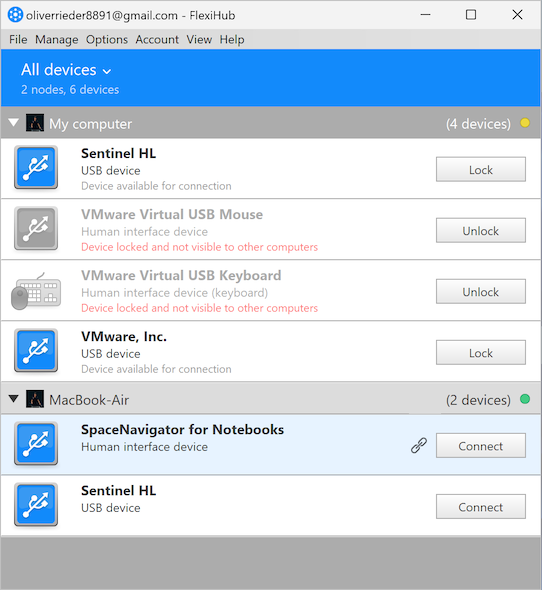
FlexiHub is a USB-over-IP software solution that virtualizes USB and COM ports over a network, enabling VMs to access and use devices as if they were physically connected. The app lets a user share a device physically connected to a server with a client, and ensures security by encrypting all traffic. FlexiHub automatically selects the fastest transmission route from direct, QUIC NAT-traversal, relayed through a tunnel server, or RDP. Teams share access via secure login tokens, eliminating the need for passwords.
Best usage scenarios:
• Admins can use FlexiHub when they require a reliable Hyper-V USB device connection to passthrough devices that RDP redirection cannot handle.
• FlexiHub provides cross-platform OS support and works with systems that lack spare DDA controllers.
• Teams can use FlexiHub to access dongles, programming tools, lab equipment, and other devices from multiple locations.
Primary purpose
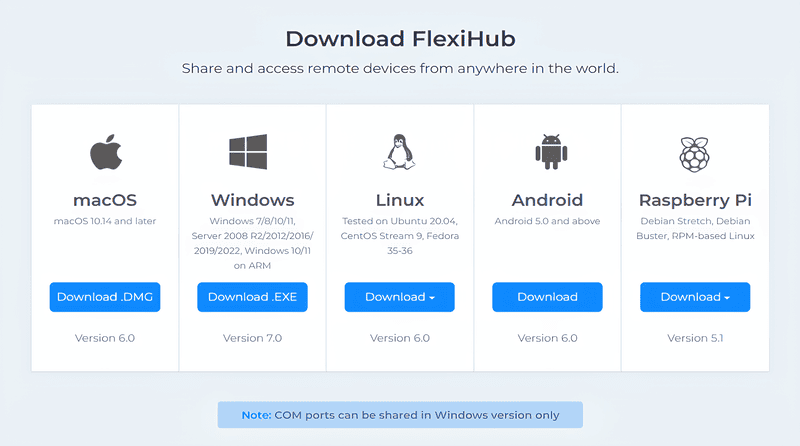
FlexiHub offers an excellent solution when RDP or ESM redirection does not support desired device classes, or when the peripheral is located offsite. The virtual USB ports created on the guest allow the VM’s OS to recognize the device natively and load drivers as if it were a local device. FlexiHub provides cross-platform support for Windows, Linux, macOS, Android, and Raspberry Pi across LANs, VPNs, or the Internet. The software centralizes Hyper-V virtual machine USB device management and lets teams exercise granular control over access.
Pros:
Cons:
System requirements
Prerequisites: Install FlexiHub on the “server” (where the USB is physically attached) and on the VM (“client”). Sign in to the software with the same credentials.
A. Hyper-V Host (USB device) → Guest VM (consumer)
Use this procedure when the USB is plugged into the host, and you want to use it with one or more VMs.

Performance tip: You can enable a direct connection by opening TCP 5000 inbound, enabling UPnP, or FlexiHub will automatically select the QUIC/RDP/Tunnel option.
B. Workstation (USB device) → Hyper-V VM over RDP/ESM
Use this procedure when you already use mstsc/ESM, but the device will not redirect natively.
C. Remote PC (USB device) ↔ Hyper-V VM (over the Internet)
Use these steps if you want to connect to an off-site device or if the VM is behind a firewall in a data center or the cloud.
Hyper-V is a popular virtualization platform that does not provide native USB passthrough support. This lack of support can affect productivity by making it difficult for users to connect their VMs to physical devices, such as printers, dongles, and disk drives. We have explored multiple methods for enabling Hyper-V USB passthrough, including native functionality, advanced configuration, and third-party tools.
The methods range from simple device management solutions to advanced functionality for specialized hardware. Users should consider these methods and choose the best solution for their needs.