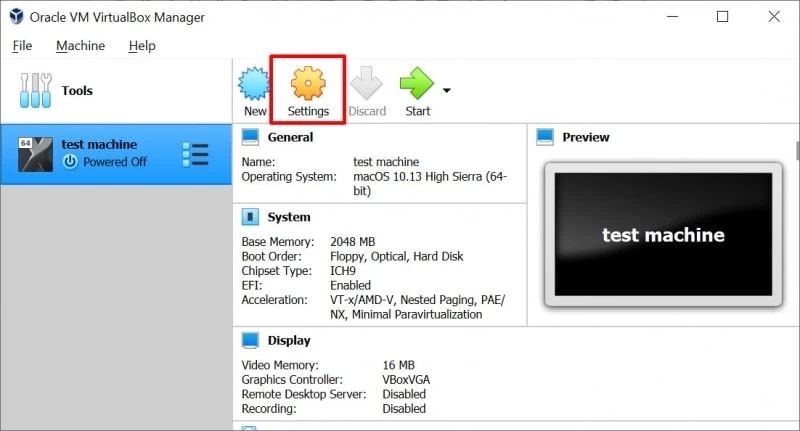

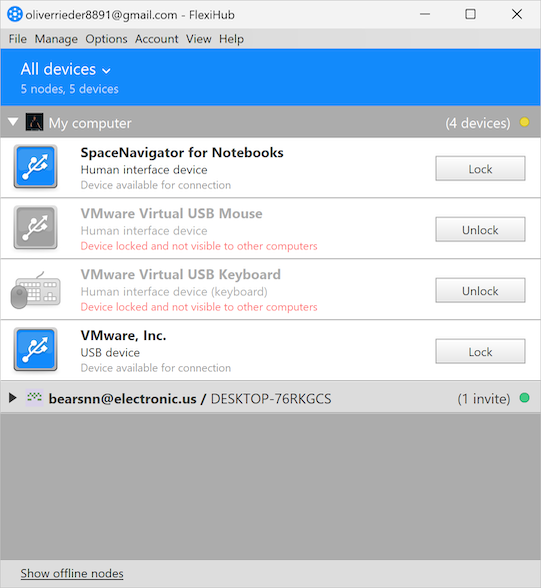
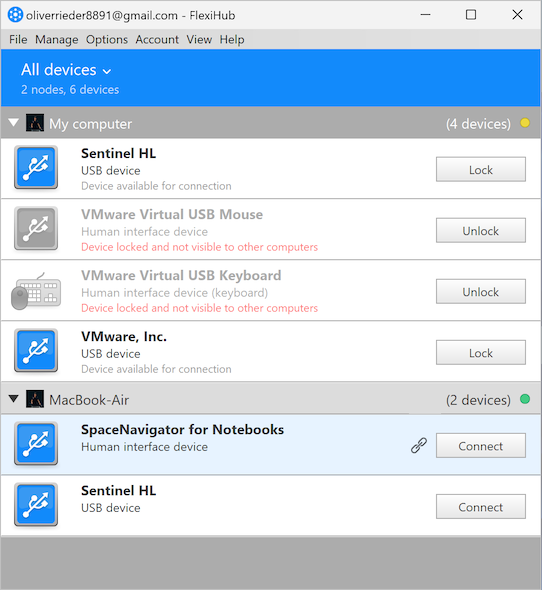
To fix this issue, you can stop VBoxUSBMon.sys driver or use another virtual machine instead of VirtualBox.
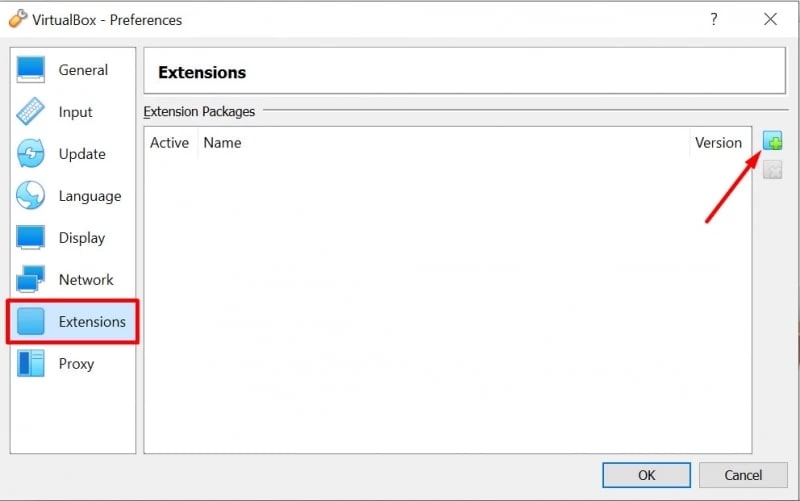
Below you’ll find the steps that will help you redirect an iOS device to a VirtualBox VM:
Many iPhone developers rely on the virtual environment when testing their applications. However, in the standard situation when the iPhone is connected to a computer via USB, the device can function incorrectly or not be recognized at all when redirected to VirtualBox.
So, a few questions arise: is there a reliable method to connect iPhone to VirtualBox and test apps in macOS hosted on VM? And if any alternatives enable redirecting iPhones connected to non-host computers to VirtualBox?
In this article, you’ll find out how to configure the VM’s built-in tools to use iOS devices on VirtualBox, and how to redirect them over the network to a VirtualBox instance.
USB support is not fully provided by default in many virtualization solutions. In situations where VirtualBox does not recognize the iPhone, a third-party software tool can solve the problem. FlexiHub is the advanced software to establish VirtualBox for iPhone connectivity.
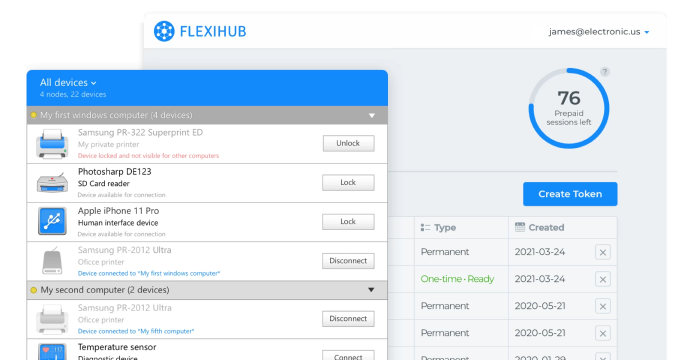
FlexiHub is an effective USB redirection application that enables you to use VirtualBox with any iOS device.
Redirecting an iPhone over the network means that you can use an iOS devices in VirtualBox, even if it is connected to a remote computer instead of the host, making the process much more convenient.
Flexihub works its magic with advanced port redirection technology, enabling the data transmission from USB devices to be redirected to virtual machines. Secure connections can be created with the help of FlexiHub over any type of IP-based network. Easily connect virtual environments from VMware, VirtualBox, Hyper-V, and others to iPad, iPhones, or any other device running iOS.
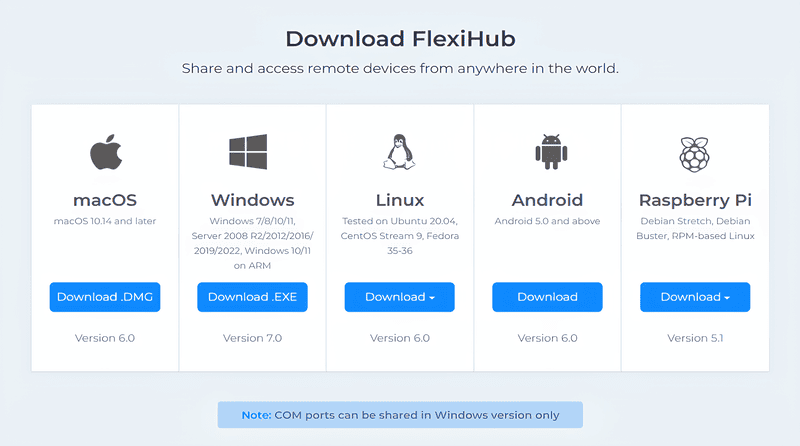
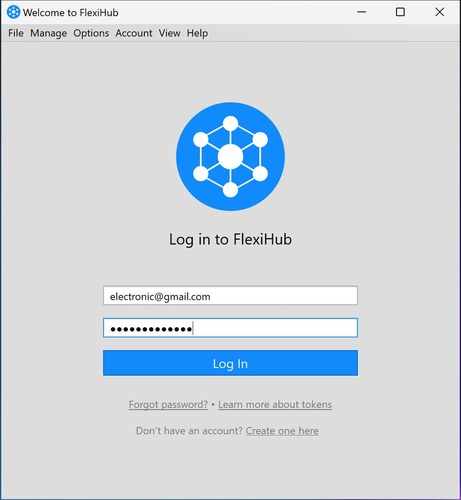
Below you’ll find the steps that will help you redirect an iOS device to a VirtualBox VM:
If you are looking for a way to enable VirtualBox for iPhone connectivity, FlexiHub has proven to be efficient in redirecting USB devices to virtual machines. Connecting your iPhone to VirtualBox with this dedicated software has many advantages. Here are some of them.
Windows and Linux users who wish to access an iPhone in a VirtualBox guest VM must be running the most recent version of VirtualBox. Beginning with VirtualBox 7.0, USB passthrough is streamlined by the inclusion of support for USB 2.0 (EHCI) and USB 3.0 (xHCI) controllers in the base package. This native support eliminates the need to install the VirtualBox Extension Pack in many instances.
Linux users may still need to install the additional components in the Extension Pack, based on the OS distribution and specific USB device they want to connect to the VM. In some cases, accessing advanced features or achieving full compatibility may require installing the Extension Pack. Users should install the same version of VirtualBox and its Extension Pack to resolve connectivity issues with an iPhone or other USB device.
VirtualBox with USB passthrough lets VM users interact with an iPhone connected to the guest OS with the same functionality as if they had a direct physical connection to the device.
If VirtualBox does not recognize iPhone, do the following:
With the above configuration, you can use Xcode from inside of VirtualBox to install, test, and debug iPhone apps.